
AI webcam for Linux — background removal, colour grading, retouching and auto-framing, running on an AMD GPU through ROCm, and exposed to Meet, Zoom, Discord or OBS as a virtual camera.


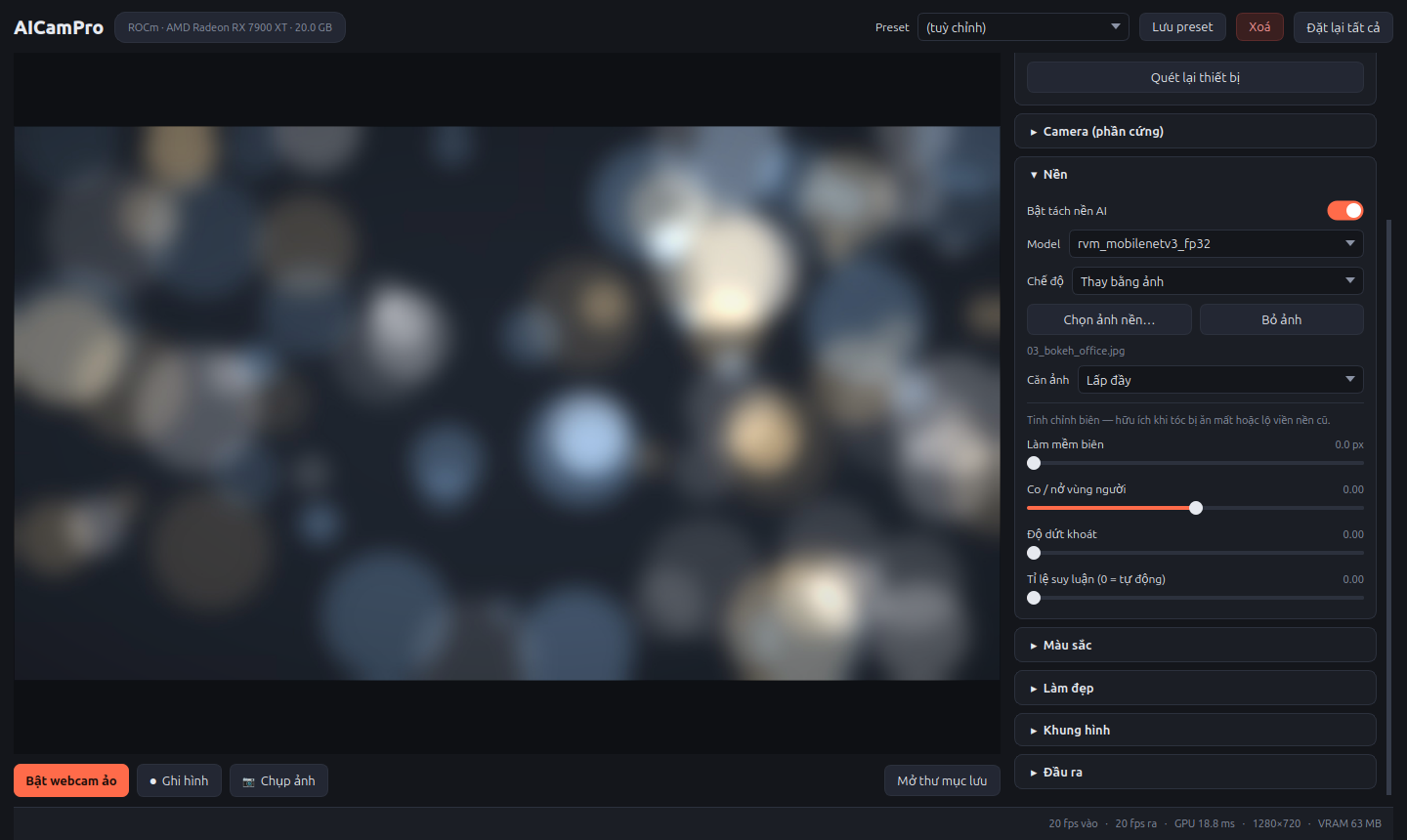
The control panel and the live preview. The status bar reports input and output frame rate, GPU time per frame, resolution and VRAM in use. Nobody is in front of the camera in this shot, so the preview shows the replacement background on its own.
Background removal for webcams is well served on Windows and on NVIDIA hardware. On Linux with a Radeon card the usual answers are a CUDA-only tool, a proprietary Windows app, or an OBS filter that runs the segmentation on the CPU and costs you a core.
AICamPro targets that gap directly: PyTorch on ROCm, a recurrent matting model, and every compositing and filtering step as a GPU tensor operation. The whole per-frame chain lands in single-digit milliseconds on an RX 7900 XT, which leaves the GPU almost entirely free for whatever else you are doing.
Background — bokeh blur, image replacement, solid colour, virtual green screen, or a transparent mode that writes real alpha into PNG snapshots. Edge controls for feathering, growing or shrinking the subject, and hardening the matte, for when hair gets eaten or a halo of the old background shows through.

The four backgrounds that ship with the project. Any image works.
Colour — exposure, contrast, saturation, temperature, tint, gamma, and 3D
.cube LUTs. Six LUTs ship with the project; drop any .cube file into
aicampro/assets/luts/ and it appears in the list.
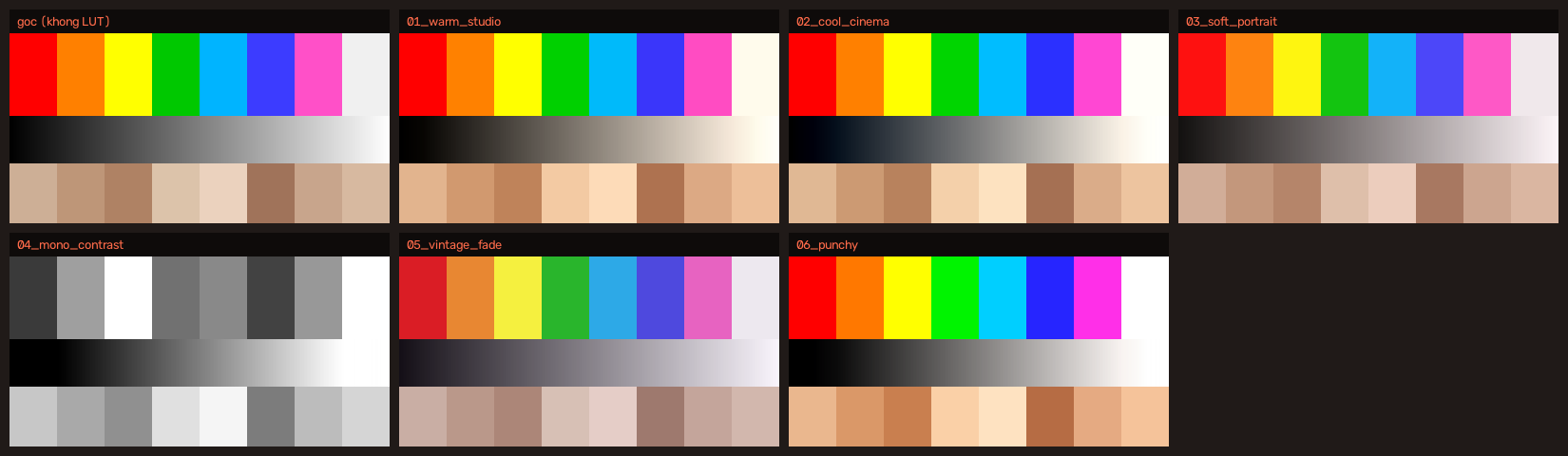
Each bundled LUT on a reference chart: colour bars, a grey ramp and a row of
skin tones. Generated by scripts/make_assets.py, so the recipes are editable.
Retouching — edge-preserving skin smoothing that can be limited to skin tones, sharpening, and vignette.
Framing — auto-framing that follows the AI matte, or a detected face when matting is off. The crop always keeps the output aspect ratio, so the image is never stretched. Capture at 1080p and output 720p and the crop uses real pixels instead of upscaling.
Output — virtual camera through v4l2loopback, recording through ffmpeg with VAAPI hardware encoding on the same AMD card, and stills. Presets store the whole look.
Camera — exposure, gain, white balance and backlight compensation read straight from V4L2, so only the controls your camera actually supports are shown. UVC cameras keep these settings on the device itself, so there is always a way back to the defaults.
Measured on a Radeon RX 7900 XT (gfx1100), torch 2.9.1+rocm6.4, 1280×720 input:
| Stage | Per frame | Equivalent |
|---|---|---|
| Matting only (RVM MobileNetV3) | 3.8 ms | 265 fps |
| + background blur | 5.1 ms | 198 fps |
| + image background | 4.8 ms | 210 fps |
| + colour, retouching, vignette | 8.0 ms | 124 fps |
| Matting at 1920×1080 | 3.9 ms | 257 fps |
Peak VRAM: ~55 MB. In practice the webcam is the bottleneck, not the GPU.
- Linux with the
amdgpudriver and an AMD GPU that ROCm supports (RDNA 2 or newer). It falls back to the CPU, but only fast enough to prove it runs. - Python 3.10 or newer, and
condafor the setup script. - Your user in the
videoandrendergroups:id # check sudo usermod -aG video,render "$USER" # then log out and back in
ffmpegfor recording andv4l2loopback-dkmsfor the virtual camera.
Nothing here bundles PyTorch. The ROCm build is about 14 GB installed — 13 GB
of that being the ROCm libraries inside the wheel — and it has to match the
amdgpu driver on your machine, so every install path fetches it once into
~/.local/share/aicampro/.
VERSION=0.1.1
curl -LO https://github.com/hashcott/AICamPro/releases/download/v$VERSION/AICamPro-$VERSION-x86_64.AppImage
chmod +x AICamPro-*.AppImage
./AICamPro-*.AppImage --setup     # once: PyTorch ROCm + models
./AICamPro-*.AppImage
Carries its own Python, Qt, OpenCV and numpy, so it runs on any distribution.
There is an aarch64 build too, but ROCm publishes no ARM64 wheels, so --setup
installs the CPU build of PyTorch there and says so.
Same contents as the AppImage, without needing FUSE — useful on locked-down kernels and in containers, and it lets you read what you are running.
VERSION=0.1.1
curl -LO https://github.com/hashcott/AICamPro/releases/download/v$VERSION/AICamPro-$VERSION-x86_64.tar.gz
tar -xzf AICamPro-$VERSION-x86_64.tar.gz
./AICamPro-$VERSION-x86_64/AICamPro --setup
./AICamPro-$VERSION-x86_64/AICamProVERSION=0.1.1
curl -LO https://github.com/hashcott/AICamPro/releases/download/v$VERSION/aicampro_${VERSION}_all.deb
sudo apt install ./aicampro_${VERSION}_all.deb
aicampro-setup # once: PyTorch ROCm + Qt + models
aicamproInstalls a desktop entry and icons, and aicampro(1) / aicampro-setup(1) man
pages.
VERSION=0.1.1
curl -LO https://github.com/hashcott/AICamPro/releases/download/v$VERSION/aicampro-$VERSION-1.fc41.noarch.rpm
sudo dnf install ./aicampro-$VERSION-1.fc41.noarch.rpm
aicampro-setup
aicampro
The package is noarch and the fc41 in the name only records where it was
built; it installs on any distribution that uses rpm. On openSUSE use
sudo zypper install ./aicampro-*.rpm.
VERSION=0.1.1
curl -LO https://github.com/hashcott/AICamPro/releases/download/v$VERSION/aicampro-$VERSION-1-any.pkg.tar.zst
sudo pacman -U ./aicampro-$VERSION-1-any.pkg.tar.zst
aicampro-setup
aicamprogit clone https://github.com/hashcott/AICamPro.git
cd AICamPro
./scripts/setup_env.sh # conda env "aicampro" + PyTorch ROCm
./scripts/download_models.sh # ~23 MB; add "all" for the ResNet50 variants
./run.shsetup_env.sh prints the GPU that torch can actually see. If that line says
CPU, ROCm is not reaching the card and nothing downstream will work.
Needed for Meet, Zoom, Discord and OBS to see AICamPro. Once, on any install path:
sudo ./scripts/setup_v4l2loopback.sh          # from a clone
sudo /usr/lib/aicampro/scripts/setup_v4l2loopback.sh   # from .deb, .rpm or Arch
Model weights are not vendored — they carry their own licences, listed in
NOTICE.
./run.sh                  # the app
./run.sh --check          # GPU, models, cameras, virtual cameras
./run.sh --list-devices # devices only, marking which accept writes| Shortcut | Action |
|---|---|
Ctrl+B |
Toggle the virtual camera |
Ctrl+R |
Start / stop recording |
Ctrl+S |
Take a snapshot |
Ctrl+Q |
Quit |
Settings live in ~/.config/aicampro/config.json, presets in
~/.config/aicampro/presets/.
The picture is very dark. UVC cameras store exposure on the device, and a manual exposure set by any other program persists across reboots. Open Camera (hardware) in the panel and turn Auto exposure back on, or use Reset camera defaults.
No virtual camera in Meet / OBS. Run ./run.sh --list-devices; it marks
which loopback devices actually accept writes. A device created with
exclusive_caps=1 can end up advertising neither capture nor output, at which
point nothing — not even ffmpeg — can write to it.
scripts/setup_v4l2loopback.sh handles that, merges in the devices other apps
already registered, and verifies by writing a real frame before reporting
success.
Auto-framing looks soft. Cropping and upscaling costs more sharpness than anything else in the pipeline: a 1.5× zoom at 720p drops the measured Laplacian variance from 328 to 62. Set the capture resolution higher than the output resolution (1080p in, 720p out) so the crop has real pixels to work with.
--check reports a CPU device. ROCm is not seeing the card. Confirm
rocminfo lists your GPU and that you are in the render group.
camera → BGR frame (CPU) → GPU tensor → matting → composite → auto-frame
       → colour → retouching → one transfer back to the CPU
       → preview + virtual camera + recording
Three threads: one reads the camera and only ever keeps the newest frame, one owns every GPU object and runs the chain, and Qt draws. There is exactly one GPU-to-CPU transfer per frame; the preview, the virtual camera and the recorder all share that array.
Matting uses RobustVideoMatting, a recurrent network, so the alpha stays stable over time instead of flickering the way per-frame models do.
aicampro/
├── core/       capture, V4L2, pipeline, virtual camera, recording
├── gpu/        matting, compositing, filters, LUTs   (1,3,H,W) RGB 0..1
├── vision/     auto-framing
└── ui/         PySide6 widgets and main window
CLAUDE.md holds the architecture notes and the list of traps that
already cost debugging time.
python -m pytest              # GPU tests skip themselves without a GPU
ruff check aicampro tests
python scripts/make_assets.py # regenerate the sample LUTs and backgrounds
tests/test_config_wiring.py runs a frame through the real pipeline and
asserts that every field of AppConfig changes the output. It exists
because one setting was once connected to nothing at all and failed silently.
Adding a config field means adding a line to CASES.
See CONTRIBUTING.md.
MIT — see LICENSE. Model weights are downloaded at install time and keep their own licences; see NOTICE.
- RobustVideoMatting — the matting model
- OpenCV Zoo — the YuNet face detector
- v4l2loopback — the virtual camera device
- pyvirtualcam — virtual camera output