
Serve and order a stack of virtual flashcards based on how well you've memorized its content: (1) make a spreadsheet with columns for the "front" and "back" of your cards; (2) add your content as rows to the sheet; (2) link that sheet to the web app; and (3) work your way through the cards. Context and instructions below.
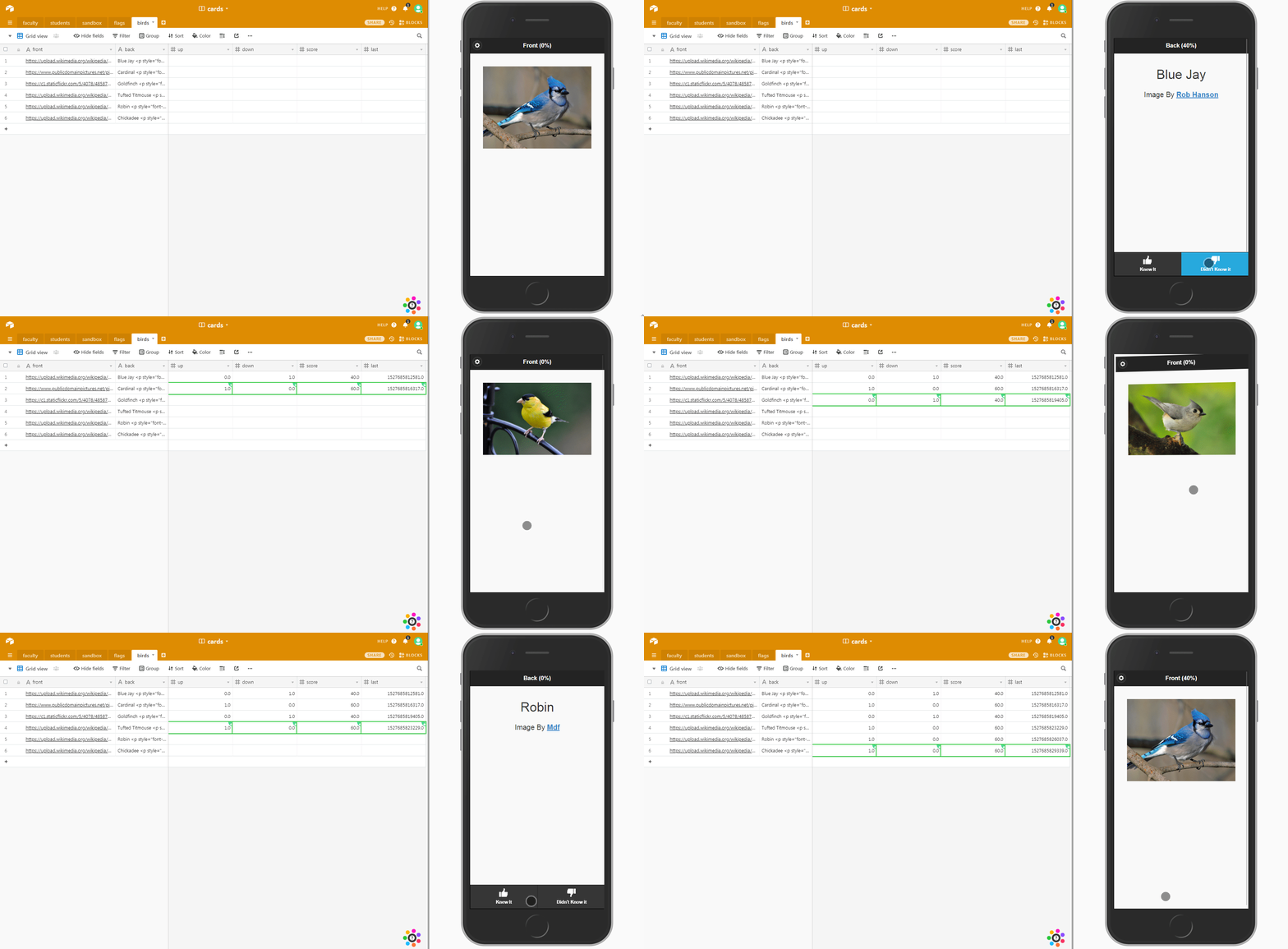
When I studied for the bar, I reduced my notes to not quite three thousand "flashcards." In truth, they were virtual flashcards. I created a database of 2,705 question-answer pairs and put them up on a web server. I accessed the server from my phone which presented the questions as cards based on how well the server thought I knew the material.
I'd view a question (the front of a card), answer it, check the answer (the back of the card), and tell my phone whether I got it right or wrong. Based on this reporting, the server would figure out where to put the card in the metaphorical stack. If I always got a question right, the card went to the back of the queue. If I never got it right, it stayed near the front, and as the balance of my answers moved from wrong to right, a card's position drifted to the back. The cards were categorized based on the topics on the Bar and I could dive in based on a topic of my choosing or a representative mix of topics.
As a consequence, I always had my cards with me, and I always knew I was reviewing the material I needed to work on most. In fact, the ordering was based on the calculation of a confidence score which effectively was an estimate of how likely I was to "know" the content. So I actually had a pretty good sense of where I was. To be clear the most important part was probably the fact that the data entry forced me to distill and engage with my notes in a meaningful way. Whatever the case, I look back fondly on what I called the BarBot.
Since passing the bar, I haven't really had the need to commit such a large amount of information to memory. However, I recently started teaching full-time at Suffolk Law, and I wanted an easy way to memorize student names. Traditionally, I make flashcards with student photos so I can greet students on the first day by name. It occurred to me that it would be pretty cool if I could do my review on the train during my commute. So I decided to revisit the virtual flashcard idea. Inspired by one of my student's projects, I decided to run the whole thing off GitHub Pages and Airtable. Consequently, anyone can create their own set of cards by making an Airtable (free on-line spreadsheet) and access it by following the directions below.
You can use Airtable as described below, or select Local CSV in Settings and upload multiple CSV files with front and back columns. The saved CSV files and compatible Airtable tables appear as checkboxes above Cooling Off, each showing its card count and a parenthetical overall familiarity percentage (the average card score for that single deck, just like the number after | during a single-deck session). This percentage updates as you review cards. Check one or more decks and click Save & Start to study all of their cards together. Each card's review history is saved in its original CSV or Airtable table, so selecting a smaller group later retains the updated scores. In Local CSV mode, Delete selected CSVs removes all checked files and their saved review history from this browser; Export CSV combines cards from all checked decks into one CSV; Reset Counts resets the checked decks only. Older single-CSV browser data is migrated automatically.
Cooling Off controls the minimum number of other questions that must be shown before a card can return. For example, with Cooling Off set to 2, answering A means neither the next question nor the one after that can be A; A becomes eligible on the third subsequent question. Set it to 0 to allow immediate repeats. This is enforced per card, not by an elapsed time or a shared counter. It must be smaller than the total card count of the selected decks. Each card’s last review value stores its position in the recent review order so the exclusion survives restarting the app (for CSV/local progress in this browser and for full-progress Airtable tables via their saved last field).
- Create an Airtable account if you don't already have one.
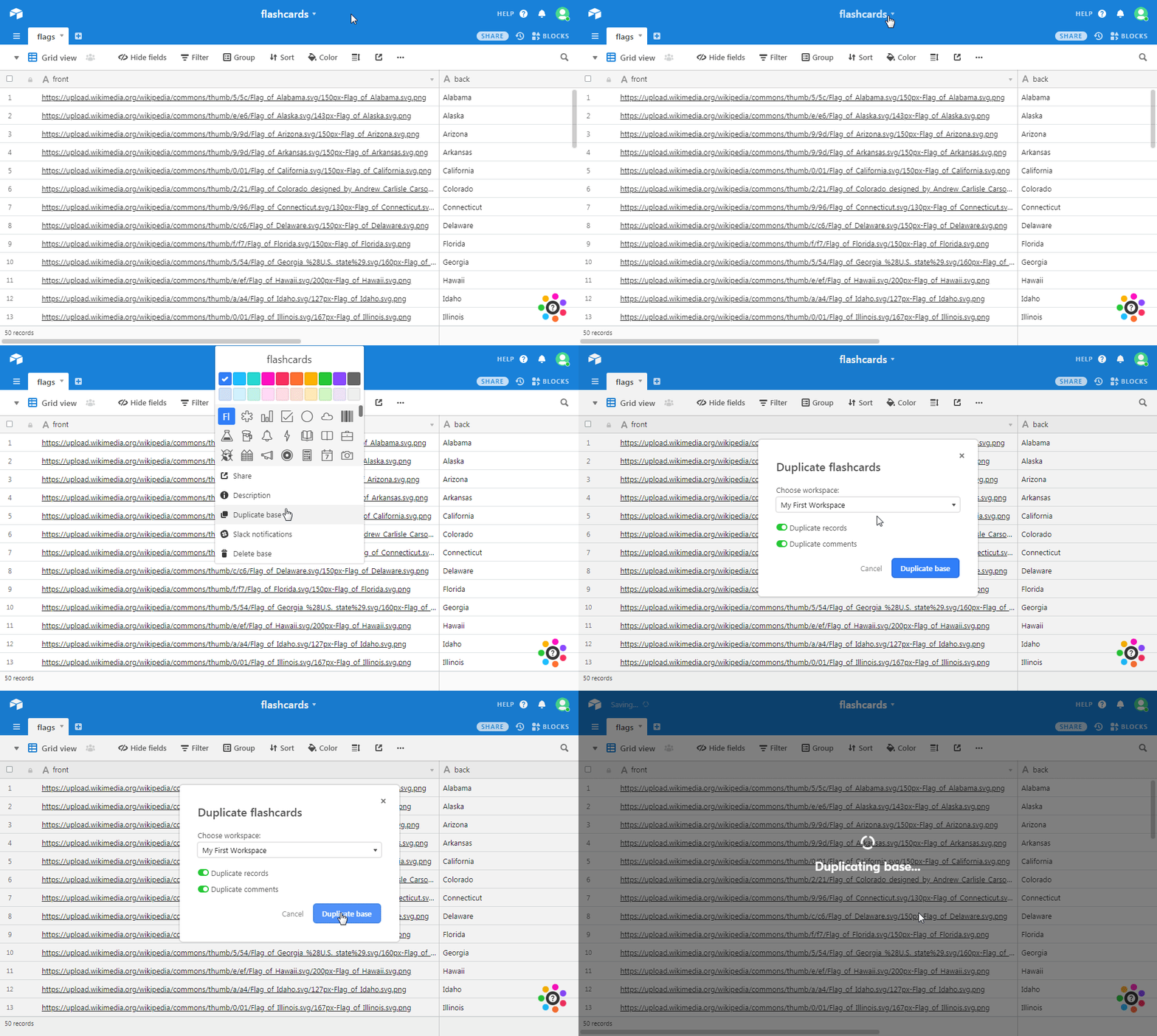
- Create one or more Airtable tables with at least front and back fields. For scores and review history to sync back to Airtable, add up, down, score, last, and random fields (the first four are number fields). Tables that only have front and back, or lack some progress fields, can still be reviewed: their progress is stored in your browser instead. You can use this base as a template if you like. Just click on the title then "Duplicate Base." You can then add your own tables.
- Fill your Airtable with your cards by placing your desired text or the URL of an image in both the "front" and "back" cells of a row. The other columns will capture the history of your interactions (e.g., how many times you got it right).
- Create an Airtable personal access token with schema.bases:read and data.records:read scopes, plus data.records:write if using the progress columns. Give it access to the base you intend to use. Find that base's ID (instructions below).
- Open the app, select Airtable, and enter only the token and Base ID. The app automatically lists tables that have
frontandbackfields and shows each table's card count and familiarity percentage (including tables with more than 100 cards). Check one or more tables and click Save & Start. Use Refresh Airtable Tables to rescan after creating or modifying tables.
When you bookmark the app or add it to your phone's home screen, its default name is Flashcards no matter whether Settings, About, or a card is currently showing. The on-screen page headings still identify the active screen. The About page also explains (card% | deck%) and how the selected decks are managed.
- If you are using a keyboard, press Space to flip a card, ↑ for Knew It, or ↓ for Didn't Know It.
- You can clear out the history of your interactions by editing your table directly (e.g., deleting all the entries other than front and back).
- The two percentages in the parenthetical at the top of a card are
(card% | deck%). The first is the system's prediction that you will get the current card right; it starts at 50% and moves up or down based on your interactions. The system moves cards with the lowest score to the top of your stack. This score is an approximation of the Wilson Confidence Interval. The second percentage is the average score across all cards in all selected decks (sum of the cards' scores divided by the number of cards, rounded to a whole percent). It is a measure of overall readiness, not the mathematical probability of getting every card right in one attempt. - If you place the url for an image (
.jpg,.gif, or.png) in either the "front" or "back" column of your sheet, the web app will display the image (e.g., the picture of a state flag from wikipedia). - You can add multiple tables to a single base and study several together; each table's review scores remain separate and are preserved when you later select only that table.
- You aren't restricted to plain text. You can use html to when wrting your cards.
Note: SeRiouS offers a virtual flashcard system for bar prep similar to the one described above. It didn't exist back when I took the bar, but if you don't want to create a few thousand cards from scratch, they have a nice set of decks made by professionals. Also, the company's run by a good friend of mine. FWIW, I do not have a financial stake in the company. I just find it interesting. That being said, I'm sure not everyone reading this is studying for the bar.
Airtable's old API keys have been retired. Use a personal access token with schema.bases:read to discover table schemas and data.records:read to count and review cards. Add data.records:write to save progress directly to Airtable when the five progress fields are present. Only grant access to the bases you want to review.
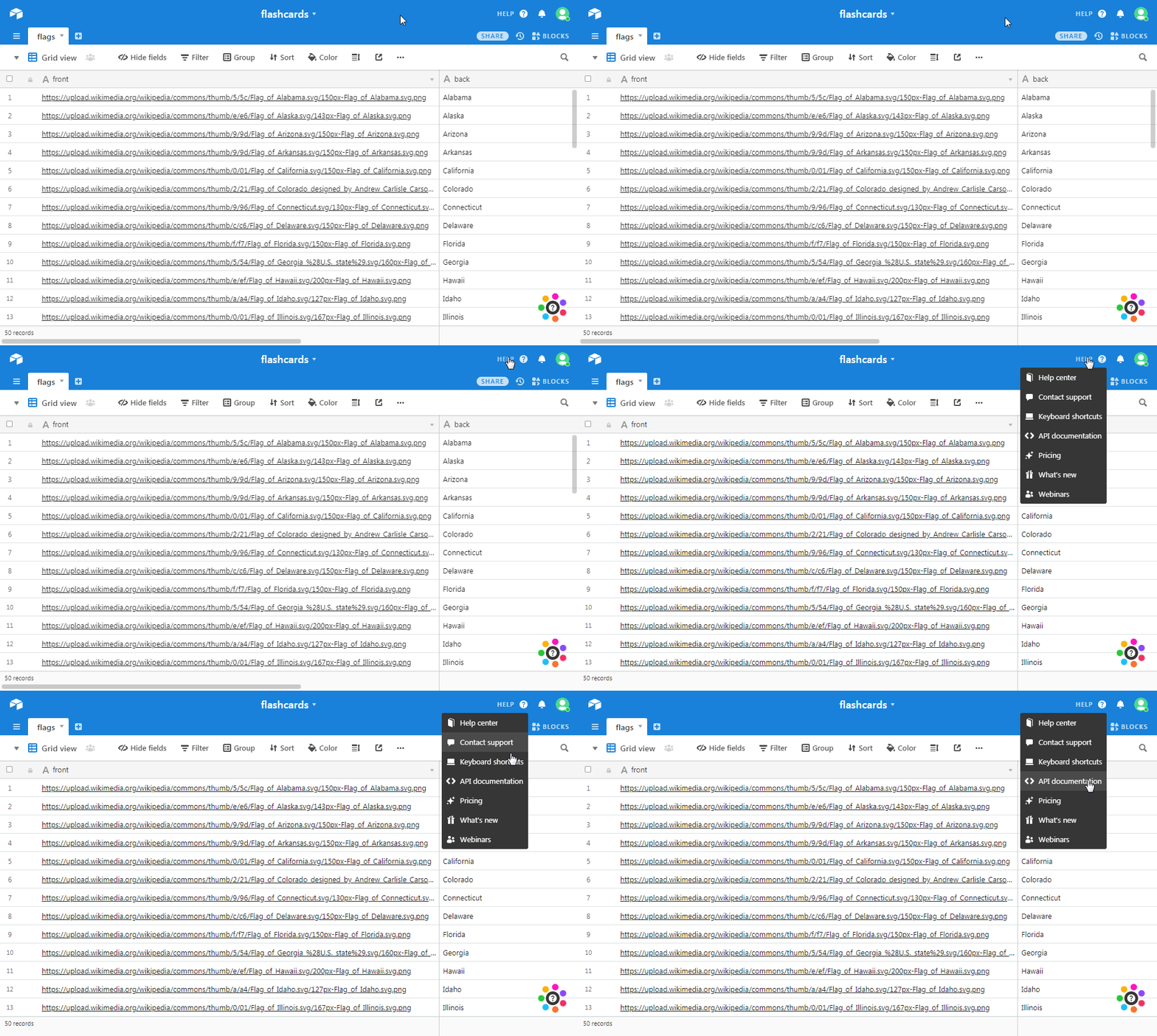
To find your bases' ID, click on the Help link then API Documentation. This will open a new window.
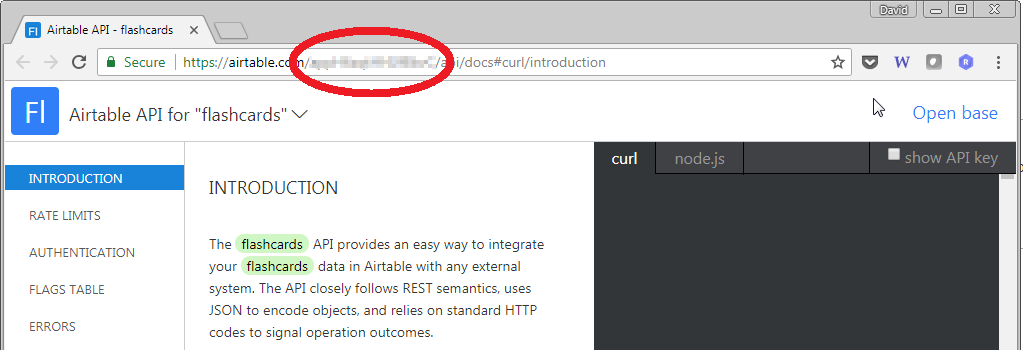
The string of text between https://airtable.com/ and /api/docs#curl/introduction is your Base ID. It should look something like this appH6ratSHISfBjvC.
There is no table-name field to fill in: compatible tables are listed automatically, with their number of cards and individual overall familiarity percentage. Check any combination of tables to include in the study session. The list refreshes when you change credentials or press Refresh Airtable Tables.
You can share a link that imports a CSV into the Local CSV list. Append ?load= and the URL of a .csv file to the flashcard app URL, for example:
https://example.com/flashcards/?load=https%3A%2F%2Fexample.org%2Fcards%2Fgeography.csv
The app downloads the CSV, checks for front and back columns, and adds it to the saved CSV decks with its filename and card count. The imported deck is selected automatically; click Save & Start to begin studying. Existing CSV decks remain untouched. Revisiting the same URL selects the previously imported copy (including its review progress) rather than creating a duplicate. Delete that copy first if you need to re-import revised contents from the same URL.
Requirements: The link must point to an HTTP(S) URL whose path ends in .csv (case insensitive; CSV URLs may include query parameters). The server hosting the CSV must permit cross-origin browser requests through CORS unless the file is served from the flashcards app's own origin. A normal file download link that blocks CORS, requires login, or redirects to HTML will not work. Failed imports show an error in Settings. Encode the CSV URL with encodeURIComponent so any ? or & within the CSV URL is handled correctly. For example:
const shareLink = 'https://example.com/flashcards/?load=' + encodeURIComponent('https://example.org/cards/geography.csv?version=2');Local CSV decks and their review progress are stored in your browser’s localStorage, not uploaded to a server. Uploading files adds them to the list (it does not overwrite existing files), even if the filenames match. Large decks may reach the browser’s storage quota. Delete selected CSVs permanently removes the checked local files. Export CSV produces a merged CSV if multiple decks are checked; Reset Counts resets all checked decks. Tables without Airtable progress fields use per-base, per-table browser storage for scoring; on another device, those scores will not follow you.
The checkboxes apply within the chosen source type: select several saved CSVs in Local CSV mode, or several compatible tables in Airtable mode. The study queue and the percentage after the | include cards from all checked decks. Cooling Off applies to the combined queue. Selections are saved across visits; at least one deck must be checked before starting. Changes to a card's score, response counts, and last-review order are written back to that card's original source—not to a new merged deck. Airtable tables with progress fields write directly to their respective tables, while tables without them keep their own per-base, per-table progress in this browser.
Reset Counts and Delete selected CSVs affect all checked items and ask for confirmation. Export CSV combines checked decks into one CSV; its original deck membership is not preserved in that exported file.